Sign Up Now | Check out the tour | Already Registered? Sign in|
Hi, RescueTime Newbie! Below are a few topics that should help you get started. You'll have a link back to this page for a while, so don't feel like you have to read and memorize everything here.
Getting Set Up (How to make sure RescueTime is working)
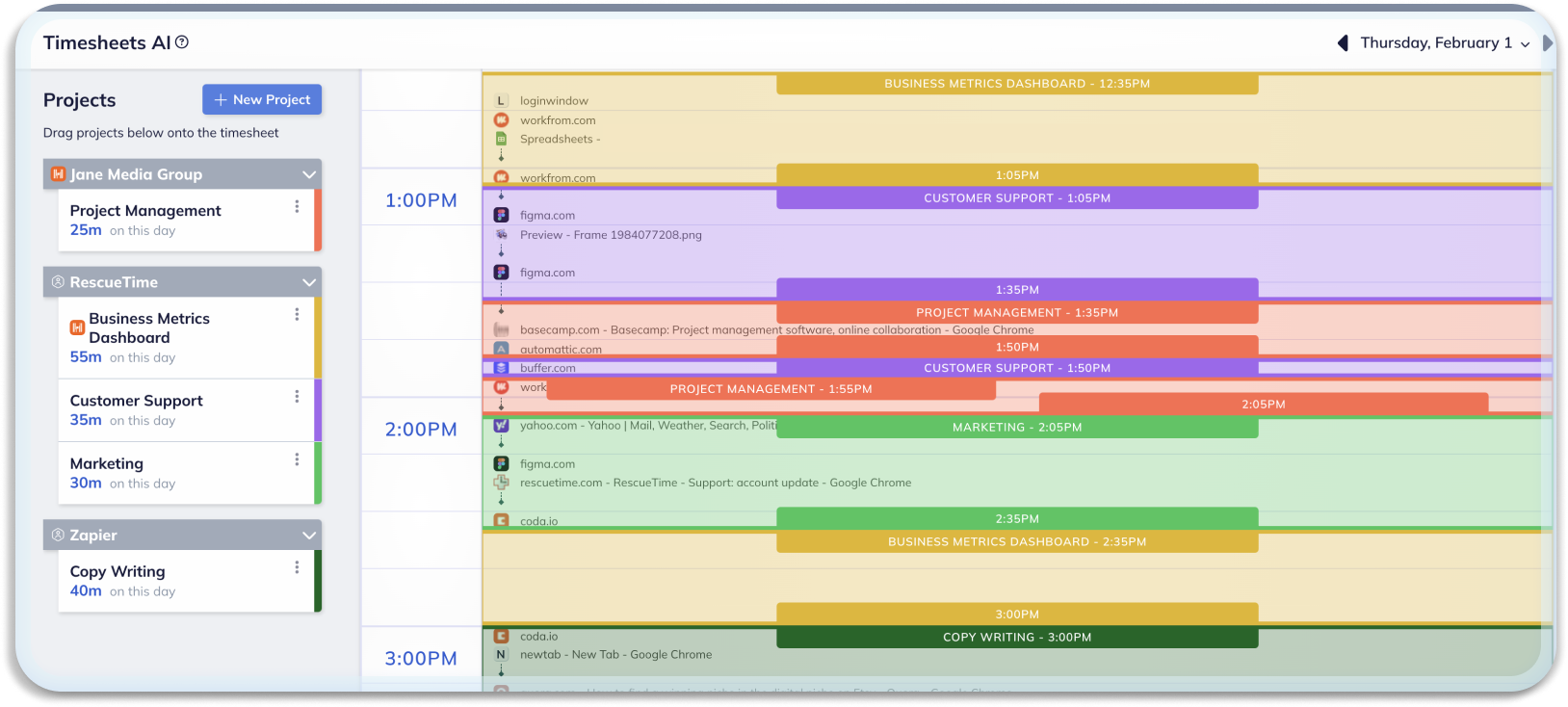
Categories, Tags & Tagging (How can I organize my RescueTime data?)The average RescueTime uses over 15 different applications and visits 40 different web sites in a given day. This is a lot of information, and we think it gets a lot more interesting if you can categorize the data. Because apps and sites can belong to a wide variety of categories, we've decided to allow users to "tag" apps and sites any way they like. What are Categories?Categories are classifications for apps and sites that are set by the system and shared by everyone to give you a "bird's eye view" of what type of apps and sites you are using. Which category an app is assigned to depends on the collective suggestions of all RescueTime users. We understand that you might wish for different categories, which is why we offer personal tags, described below. What's a Tag?Tags are 1-word labels that you can assign to a particular app and site to help you organize them into meaningful buckets. You can assign as many tags as you like to a particular app or site, and you can always rename and delete them later. We think tagging is a lot more powerful than having fixed categories. For example, you could tag Outlook a "comm" and "work", and tag "Gmail.com" as "comm" and "personal" to easily understand how much time you spend communicating, but also allowing you to understand how much time you spend you spend on work vs. personal communication. Another fun example is that you could tag all google sites as "GoogleOwnsMe" to see exactly what percentage of your time is spent on a Google property! How and When do I Tag Something?Tagging is technically optional, but much of the power of RescueTime assumes that you tag your most commonly used apps and sites. At any time, you can click on the "List View" button on the right to see a list of all of the apps and sites you've used in the period that you have selected up top in the calendar controls. Once you've done a bit of tagging, you'll probably find that it's easier to view the list of Untagged Apps and Sites (which is handily sorted from most used to least used). You can keep an eye on your "Top Tags" graph on your dashboard and click on the "untagged" bar to the far right of the graph to get to this list quickly. That's a lot of Tagging. Won't This Take a Lot of Time?You don't have to tag everything! There's a point of diminishing returns-- we recommend only tagging apps and sites that you are sure you'll visit again. If you have a long "tail" of apps and sites that still accounts for a lot of time, you can elect to use the "autotag" feature, which will automagically tag the remaining untagged items in your list with a bias towards the tags that you've used in the past.
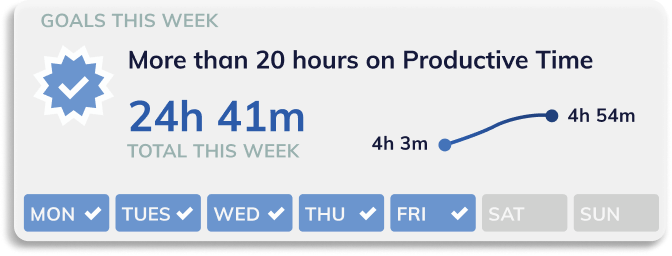
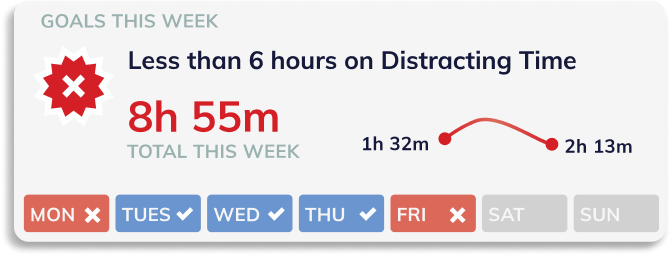
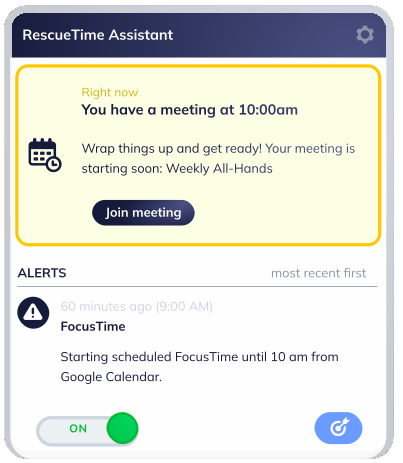
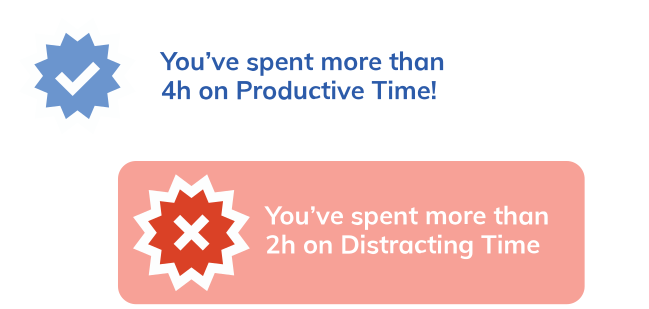
Goals & Alerts (using RescueTime to be more productive?)Just Knowing HelpsWe all have a picture in our head of how we think we spend our time. Actually having objective data showing you where you waste your time can be a powerful motivator to change your behavior (if you want to!). Goals & AlertsRescueTime allows you to set goals for how you want to spend your time. For example, you could choose to have a goal of "I want to spend more than 5 hours per day on stuff tagged as 'work'," or you could have a goal of "I want to spend less than 1 hour per day on stuff tagged as 'blogs'". Once you have these goals, you can choose to receive alerts when you meet/exceed them via email, RSS, or even via an SMS to your phone! Form a GroupRescueTime allows you to form groups where you can compare how you spend your time versus the average member. This allows you to harness to powers of peer pressure without actually exposing your individual data.
Groups (Using RescueTime for your Business Team)What are Groups?RescueTime allows you to form groups where you can compare how you spend your time versus the average member. How do I Create a Group?Your first step is to create a group. Every RescueTime user can create a group of up to 5 members for free. To create more groups (or a larger group), you might need to upgrade your plan. How does Group Data Work? What about Tags?Group data is only ever shown in aggregate. That means that individual users can compare themselves to the average, but can't drill into individual group member data... Even if they are group administrators! Because individuals might have varying ways they like to tag their own data, groups data has its own tags. Anyone in the group who is a group administrator will have the power to manage group tags.
I just signed up for a Group Plan. How to I invite Group Members?Once you've created a group, clicking on the "groups" button to the right will take you to the group management page. Here you can invite users one at a time by clicking on "invite a new member" or you can invite users in bulk using the "bulk invite" link. People that you invite will get an automated email giving them instructions on how to continue, but it might be a good idea to prepare them for the invite so they know what's going on!
Adding RescueTime Info to Your Blog, Site, iGoogle Page, or NetVibes Page (and more!)One of our goals with RescueTime is to allow you to see the data anywhere you want to. We've got more on the way here, but here are some options to get you started. RescueTime Widgets for Blogs & SitesThere's nothing quite like a public display of how you're spending you're time to help you spend it more effectively. With just a few clicks you can add your "Top 10 Apps and Sites" or your "Top 10 Tags" graph to almost any page. Just head over to our widgets page to get started. RescueTime on iGoogle, NetVibes, or as a Desktop WidgetIf you're using iGoogle or NetVibes as a personal "dashboard", you can bring a slice of your RescueTime dashboard there. Check out our iGoogle Gadget and our NetVibes Gadget. Or, if you'd like to add RescueTime as a desktop widget you can do that too (thanks one of our users, Robert Strazzarino) RescueTime Weekly Email SummaryBy default, RescueTime sends you a weekly email telling you how you spend your time. You can toggle this setting on your settings page. RescueTime Alerts (via RSS, Email, or SMS)You can choose to be alerted when you reach or exceed a goal by using our alerts feature (if you haven't already, you'll need to create some goals first).
Thanks for the Info-- but I Still Need Help!That's What We're Here For.We really want you to be happy with RescueTime. If you're confused, frustrated, or just have a great idea you want to share, we want you to reach out. You can use the ultra-simple little feedback box to the right, or (if you want/need a response) you can check out our "help" page. |
|---|